
Embracing the Penguin: My Journey from Mac to Ubuntu Linux For the past 30 years, I’ve been a steadfast Mac user. From my first Macintosh to the latest macOS,...
I’m a software developer and I sit in front of the computer all day long looking at code which can be incredibly tiring on...
I’ve found a new podcast to listen to called “Twenty Thousand Hertz” which discusses and talks about audio production. As a big Ted Lasso...
Sir Sean Connery has passed today away at age 90. Sir Sean Connery was the first actor to play James Bond and bring him...
I wish everyone to be safe and healthy during this COVID-19 crisis. It’s important to stay home and keep...
Apple is in a sad state at the moment when it comes to Macintosh hardware. I’ve been wanting to...
The hack and data breach Last week, Sept 8th, Equifax one of the three major credit reporting company announced...
Today, Amazon is announcing they are using s2n to handle all the secure traffic in and out of S3. ...

When I heard the news from a friend today, I was absolutely gutted. I still am. I can’t believe Richard Hatch,...
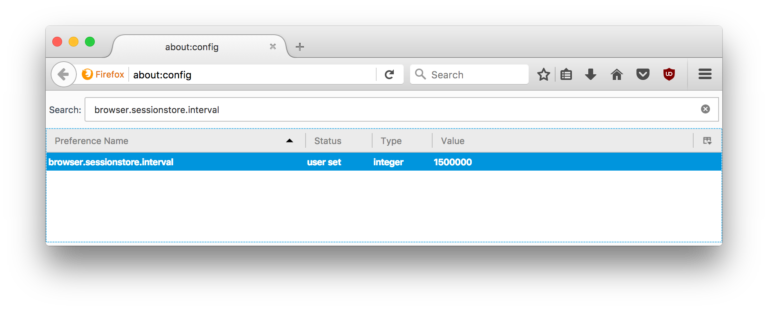
Majority of our computers boot from Solid-State-Drives (SSD). This is great for performance, but SSDs have drawbacks due to the inherit...
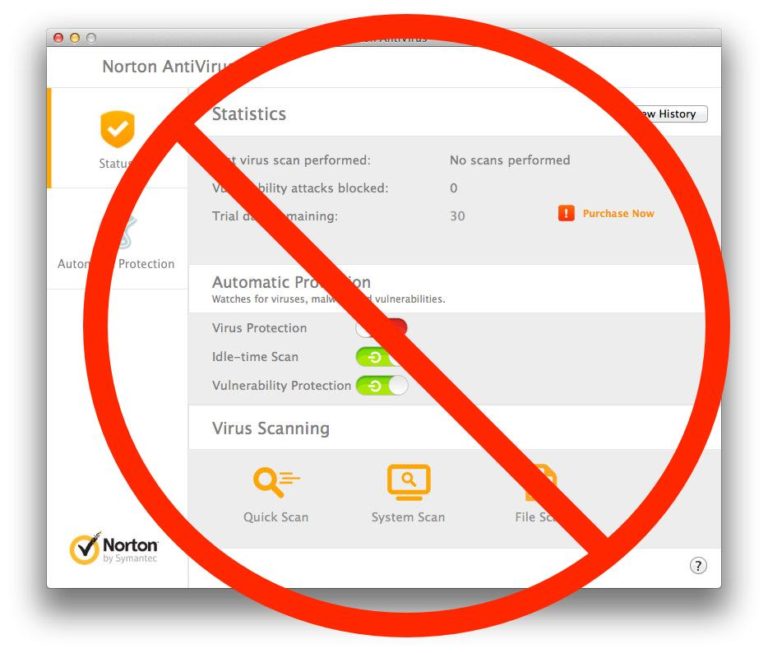
You may want to think twice before installing Antivirus software on your computer. For decades installing Antivirus software on your computer...

It is daunting trying to find a good web hosting company. About a decade ago, I found WebFaction and have stuck...

I’ve been a user of the Alfred app for MacOS for many years. It’s a very useful tool that allows me...
John Oliver discussed the topic of Journalism in the US on his show “Last Week Tonight” last Sunday (August 7th, 2016)....
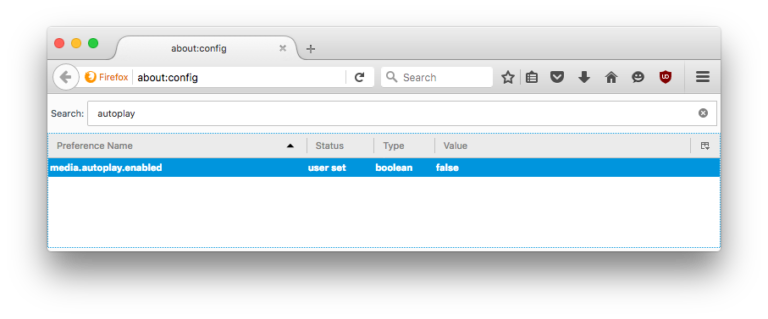
Recently I have become frustrated when videos automatically start playing in tabs in Firefox. This happens as I click links that...
If you are a fan of Battlestar Galactica, you’ll easily recognize the name Richard Hatch. He played Apollo in...
This is a funny example of why having a programming manual is not a great idea. Why programming manuals...
Recently several family members and friends have talked about losing some of their data from either their phone or...
It’s amazing how the mind works when it comes to memory and music. I was listening to a Classical station on...
This week a pair of critical security vulnerability found in the OpenSSH client that can allow an attacker to read the...
All Stories
Vertical videos drive me nuts. People on their mobile phones recording videos vertically instead of horizontally the way we’re supposed to...
I recently wanted to remove the stickers from my Mac Book so I slowly pealed them off and they were gone!...

If you’re like me, you’re into anything space related, especially things from NASA. Here’s something really cool and fun that could...
I have a lot of data and I often find myself copying massive amounts of data from one drive to another....
Update: It appears LightLeaks.me is no longer in business. You can take these ideas, however and still apply them to your...